1 Development Environments
For this course, we will use the web-based development environment Jupyterhub. It is available to all participants for the duration of the course.
For long-term work, a personal installation is recommended.
1.1 Installing on Your Own Computer (Linux/MacOS/MS Windows)
- Install Julia with the installation and update manager juliaup: https://github.com/JuliaLang/juliaup/.
- Install Visual Studio Code as editor/IDE: https://code.visualstudio.com/.
- Install the Julia language extension in VS Code: https://www.julia-vscode.org/docs/stable/gettingstarted/.
Getting started:
- Create a new file with the extension
.jlin VS Code - Write Julia code
Shift-EnterorCtrl-Enterat the end of a statement or block starts a Julia-REPL: the code is copied to the REPL and executed- Key bindings for VS Code and for Julia in VS Code
1.1.1 The Julia-REPL
When Julia is started directly from the command line, the Julia-REPL (read-eval-print loop) opens, allowing interactive work.
$ julia
                _
    _       _ _(_)_     |  Documentation: https://docs.julialang.org
   (_)     | (_) (_)    |
    _ _   _| |_  __ _   |  Type "?" for help, "]?" for Pkg help.
   | | | | | | |/ _` |  |
   | | |_| | | | (_| |  |  Version 1.12.5 (2026-02-09)
  _/ |\__'_|_|_|\__'_|  |  Official https://julialang.org/ release
|__/                   |

julia>
1.2 Working on the Jupyterhub Webserver
1.2.1 Jupyterhub & Jupyter
- JupyterHub is a multi-user server for Jupyter notebooks.
- Jupyter is a web-based interactive programming environment
- Originally written for and in Python, but now supports many programming languages
- In Jupyter, one works with so-called notebooks: structured text files (JSON) with the file extension
*.ipynb.
Our Jupyterhub server: https://misun103.mathematik.uni-leipzig.de/
After logging into Jupyterhub, a file manager appears:
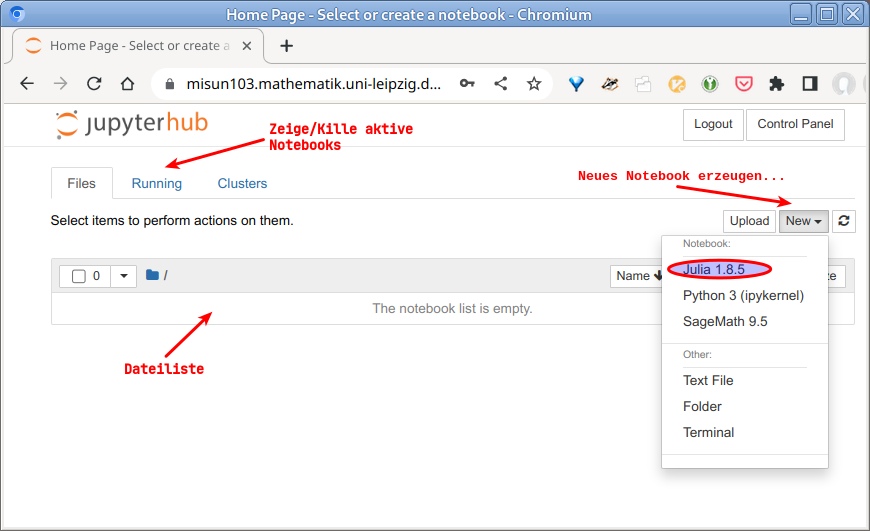
This can be used to:
- open existing notebooks,
- create new notebooks,
- upload files, e.g., notebooks, from your local computer,
- log out when finished (Please don’t forget this!)
1.2.2 Jupyter notebooks
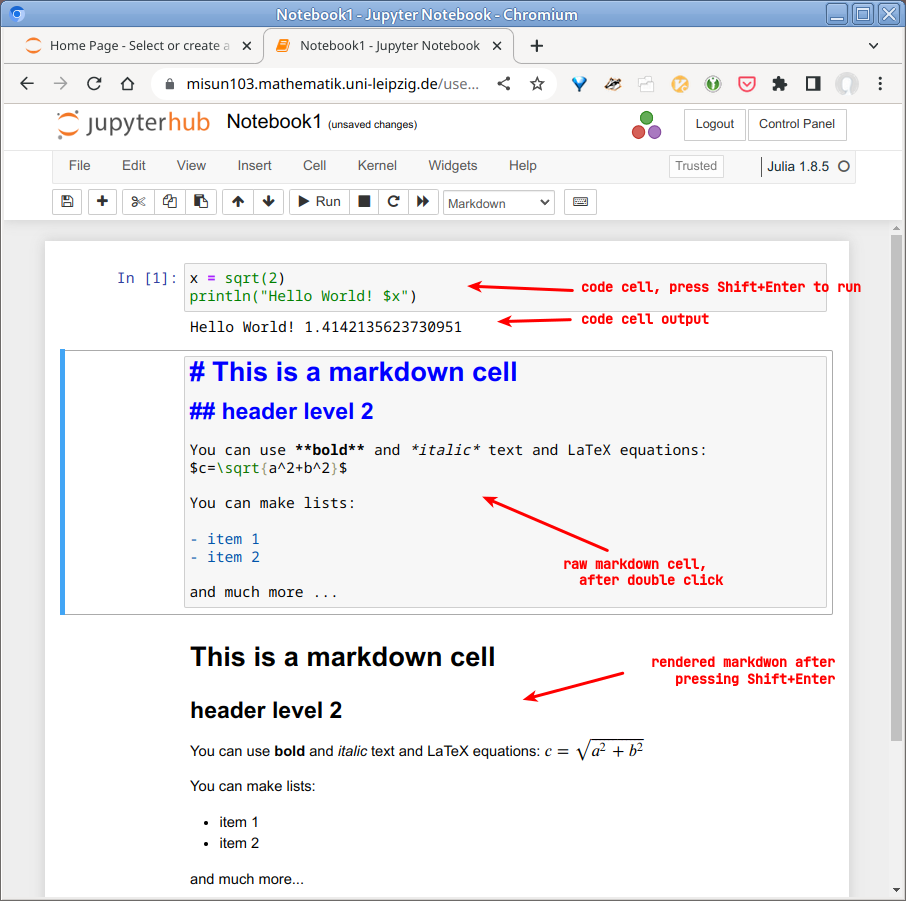
Notebooks consist of cells. Cells can contain
- Code, or
- Text/documentation (Markdown)
In text cells, the markup language Markdown can be used for formatting and LaTeX for mathematical equations.
Please check the User Interface Tour and Keyboard Shortcuts topics in the Help menu!
The cell currently being worked on can be in command mode or edit mode.
| Command mode | Edit mode | |
|---|---|---|
| Activate mode | ESC |
Double-click or Enter in cell |
| New cell | b |
Alt-Enter |
| Delete cell | dd |
|
| Save notebook | s |
Ctrl-s |
| Rename notebook | Menu -> File -> Rename |
Menu -> File -> Rename |
| Close notebook | Menu -> File -> Close & Halt |
Menu -> File -> Close & Halt |
| Run cell | Ctrl-Enter |
Ctrl-Enter |
| Run cell, move to next cell | Shift-Enter |
Shift-Enter |
| Run cell, insert new cell below | Alt-Enter |
Alt-Enter |
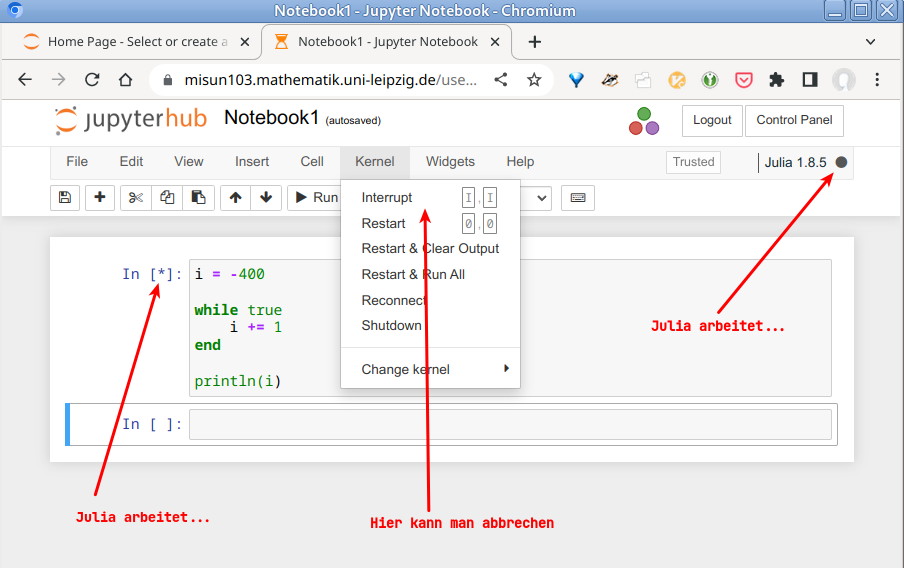
When a cell is working, its cell number becomes a * and the kernel busy indicator appears (solid black dot at the top right next to the Julia version). If this takes too long (an infinite loop can easily happen):
- click
Menu -> Kernel -> Interrupt. If this doesn’t work, - click
Menu -> Kernel -> Restart.
After a kernel restart, all cells containing the required definitions, using statements, etc. must be executed again.
At the end of each session, please always:
Menu -> File -> Save & CheckpointMenu -> File -> Close & HaltLogout